Agent Daily Reports help you review yesterday's CRM activity without opening the dashboard.
Every morning at 7:00 AM IST, Pragma can send two kinds of emails:
- Personal reports for agents, showing only their own activity.
- Team reports for managers, showing activity for the team.
Reports include ticket activity, backlog, CSAT, online time, break time, utilization, and overtime when available.
Before you start
Only Inbox users can receive personal reports. Disabled users stay visible in the list, but Pragma does not send report emails to disabled users.
1. Open Daily Activity Reports
Go to Settings > Inbox settings > Daily Activity Reports.
2. Turn on daily reports
Use the switch at the top-right of the Daily Activity Reports page.
- Paused means no scheduled daily report is sent.
- Enabled means the report will run after recipients are saved.
Choose recipients and save changes before the next scheduled run.
3. Send a personal report to an agent
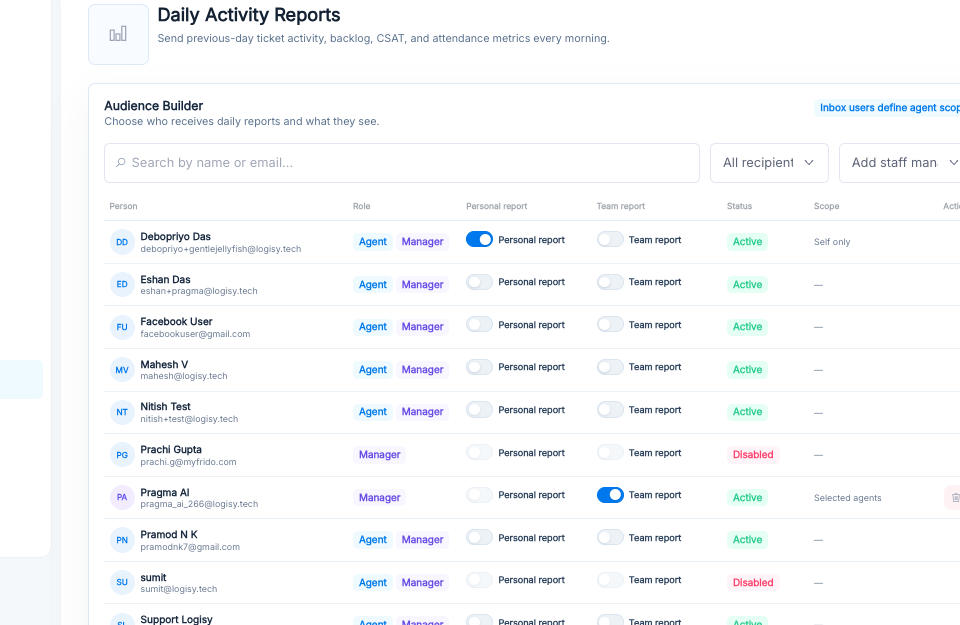
In Audience Builder, find the agent and turn on Personal report.
That agent receives one email with only their own previous-day activity: backlog, assigned tickets, opened tickets, follow-ups, closed tickets, touched tickets, CSAT, online time, utilization, breaks, and overtime.
Screenshot: Audience Builder with personal and team report toggles
4. Send a team report to a manager
In Audience Builder, find the manager and turn on Team report.
That manager receives one email with team activity. Team reports can be sent even if you do not send personal reports to any agent.
5. Understand disabled users
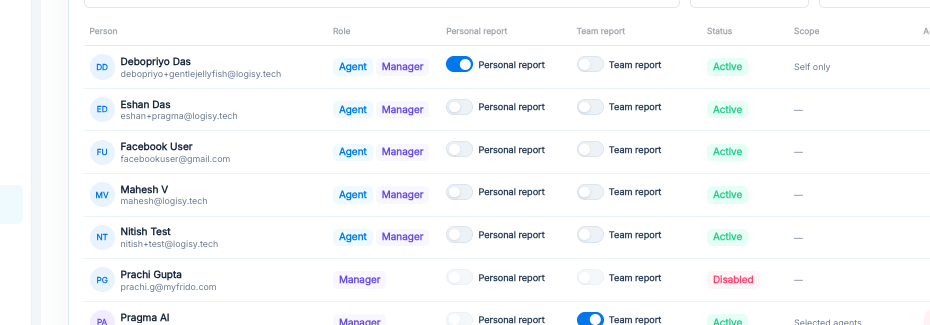
If a user is disabled, Pragma shows Disabled in the Status column. Disabled users cannot be selected for reports, and Pragma skips emails for them.
Screenshot: Disabled users and selected manager recipient
6. Add an external manager email
Use External manager email if the manager is not listed as a staff user.
Enter the email address and click Add external manager. External managers can receive team reports.
7. Send a test email
Use Send test email before rollout.
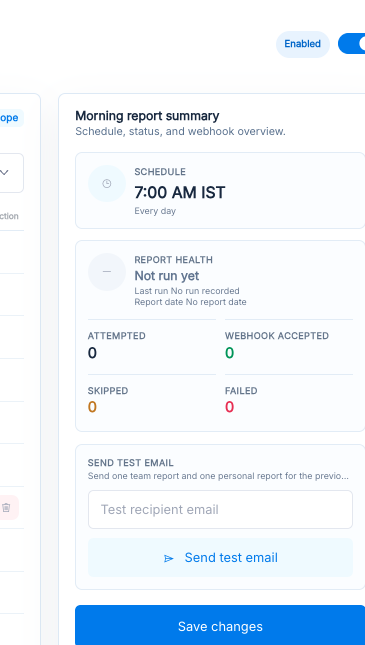
Enter an email address and click Send test email. Pragma sends two sample emails for the previous day:
- one team report
- one personal report for one randomly selected agent
The test uses real previous-day data when available.
Screenshot: Morning report summary and Send test email panel
8. Save changes
Click Save changes after choosing recipients. Changes apply to the next scheduled run.
What each status means
- Paused: daily reports are off.
- Enabled: daily reports are on and will run after recipients are saved.
- Active: the user can receive reports if selected.
- Disabled: the user will not receive report emails.
- Not run yet: no scheduled report has run yet.
- Skipped: Pragma did not send a recipient email, usually because the user is disabled or not eligible.
- Failed: the webhook or report send failed and needs support review.
Was this article helpful?
That’s Great!
Thank you for your feedback
Sorry! We couldn't be helpful
Thank you for your feedback
Feedback sent
We appreciate your effort and will try to fix the article