This guide explains how to set up Product Replenishment Reminders in Pragma.
Use this feature when you want customers to receive a reminder after they have bought a product that may need to be purchased again later. For example, protein powder, supplements, skincare, pet food, filters, groceries, or any product that customers usually refill after some time.
The setup has two parts:
Create a workflow in the Workflows section that decides what message should be sent.
Create a replenishment configuration in Pragma that decides which products should trigger that workflow and after how many days.
Pragma does not send the message directly from the replenishment settings page. It creates a replenishment reminder event, then Workflows runs the selected workflow. This means your team can manage templates, channels, message timing, blackout windows, and tracking inside the workflow builder.
Before You Start
You need:
At least one active workflow for the
replenishment_reminderevent.One or more products selected for reminders.
A delay, such as 30 days after delivery.
If no eligible workflow exists, you will not be able to save the replenishment configuration. This protects you from creating a setup that cannot send anything.
How It Works
When a customer receives an order, Pragma checks whether any purchased product has a replenishment configuration.
If it does, Pragma schedules a reminder for the configured number of days after the delivered date.
Example:
Product delivered on May 1
Reminder delay is 30 days
Reminder becomes due on May 31
When the reminder becomes due, Pragma fetches the latest product details, such as product name, price, image, and URL. This keeps messages fresh if the product page or image changes later.
Then Pragma sends a replenishment reminder event to the selected workflow.
Important Behaviour
Customers Will Not Receive Duplicate Same-Day Reminders
If multiple products are due for the same customer on the same day, Pragma chooses one product and sends one replenishment event. The other due products are skipped for that day to avoid spamming the customer.
Buying a Different Product Does Not Cancel the Reminder
If a customer bought Product A and later bought Product B, the reminder for Product A can still be sent.
The reminder is skipped only if the customer buys the same product again before the reminder is due.
Product Details Are Checked Live
Pragma does not store an old product snapshot for the reminder. At send time, it checks the latest product details.
If the product no longer exists, is unavailable, or does not have a valid product URL, that reminder is skipped.
Workflows Owns Sending and Tracking
Workflows handles the actual message sending, channel logic, templates, tracking, and conversions.
The replenishment settings page only controls:
Which products are eligible
When the reminder should become due
Which workflow should run
Step 1: Open Replenishment Settings
Go to:
Settings > Product Replenishment Reminders
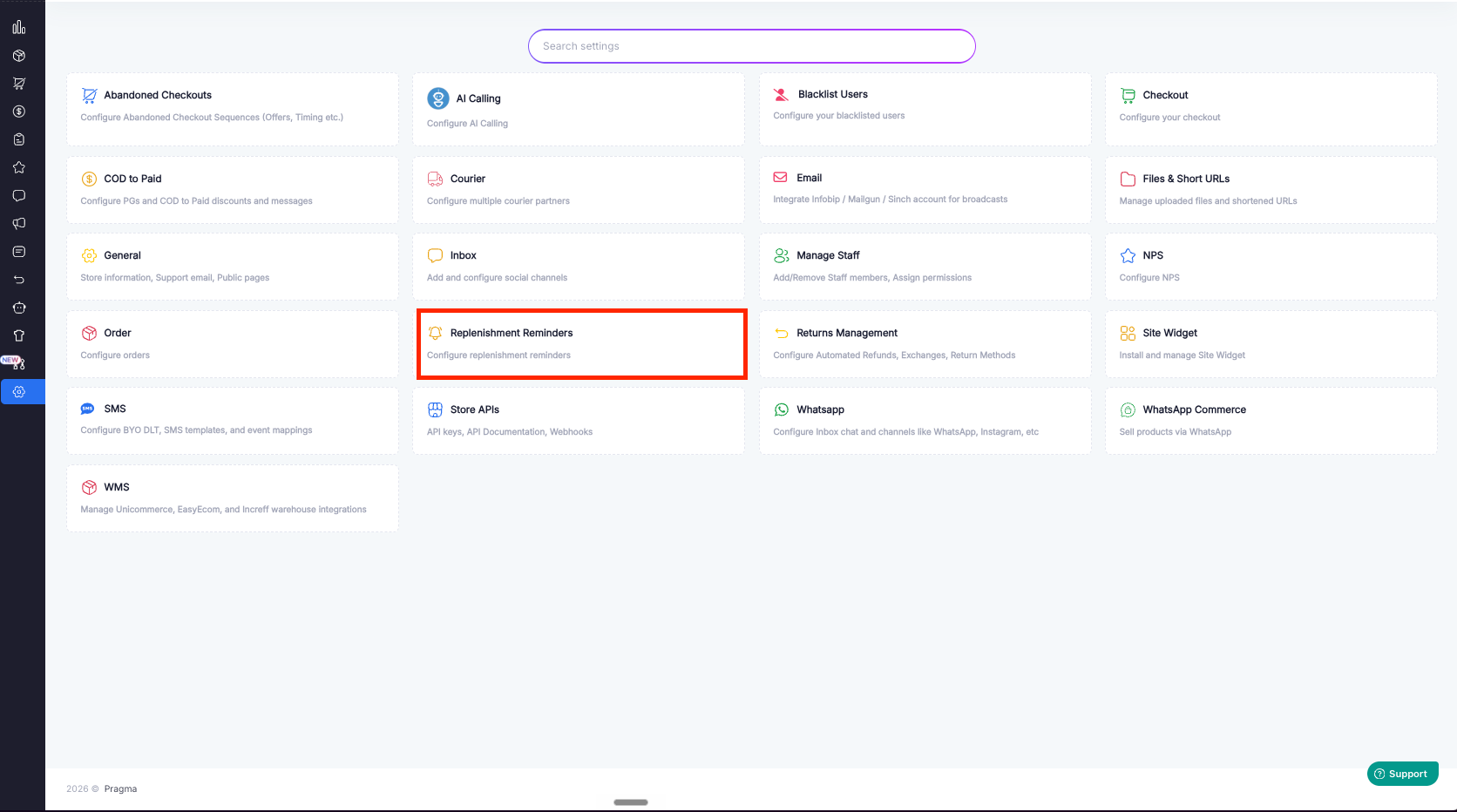
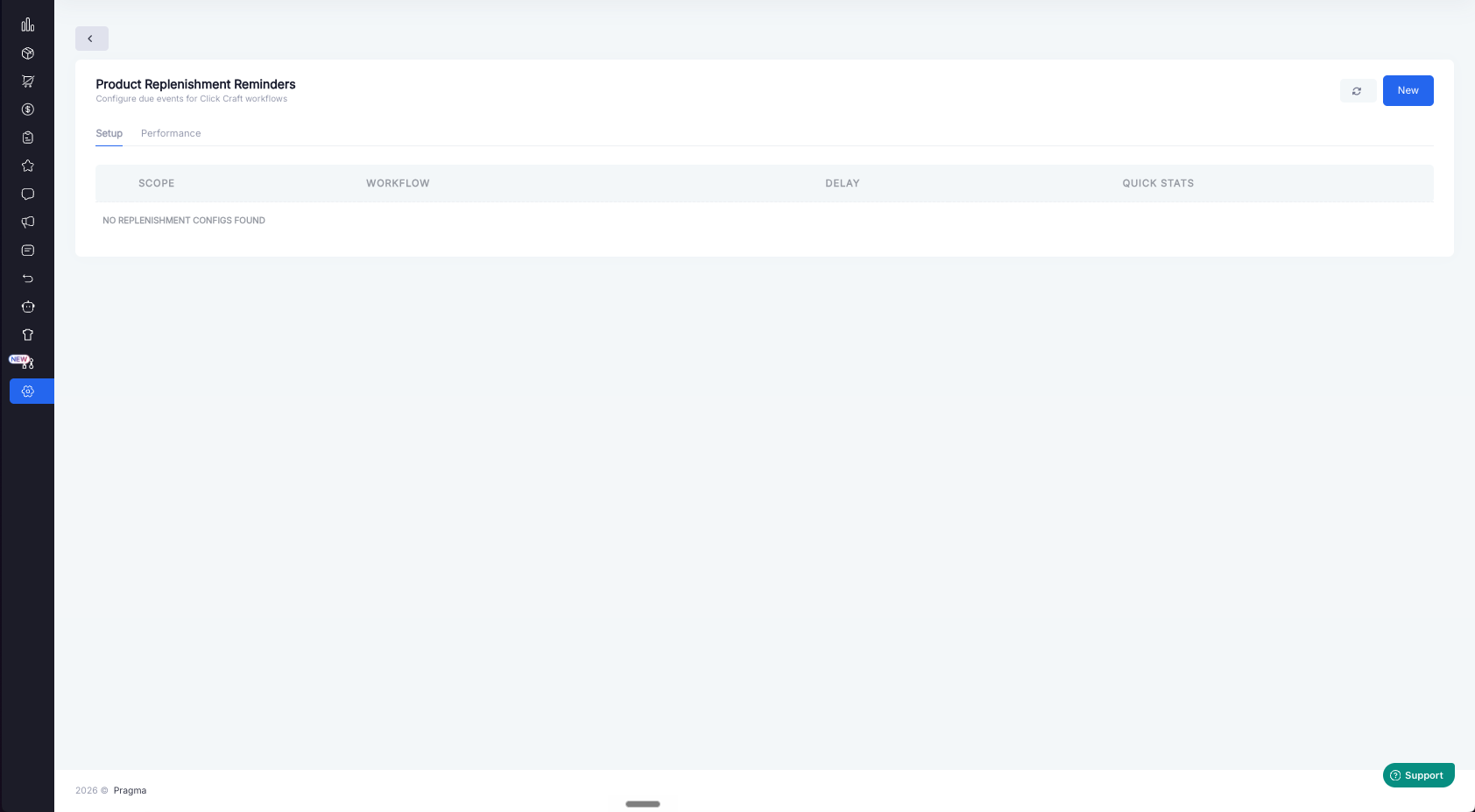
You will see two tabs:
Setup: Create and manage replenishment configurations.
Performance: View executions, skips, conversions, revenue, and other performance data.
Step 2: Create a Workflow
Before saving a replenishment configuration, you need an active workflow that uses the replenishment_reminder event.
Click Create workflow if you do not already have one.
This opens the workflow builder. In the workflow builder, create a workflow that starts from the replenishment reminder event.
Your workflow can then:
Select a message template
Map product and customer variables
Decide the channel
Apply blackout windows or timing rules
Track clicks, delivery, revenue, and conversions
Create workflow button

Workflow builder trigger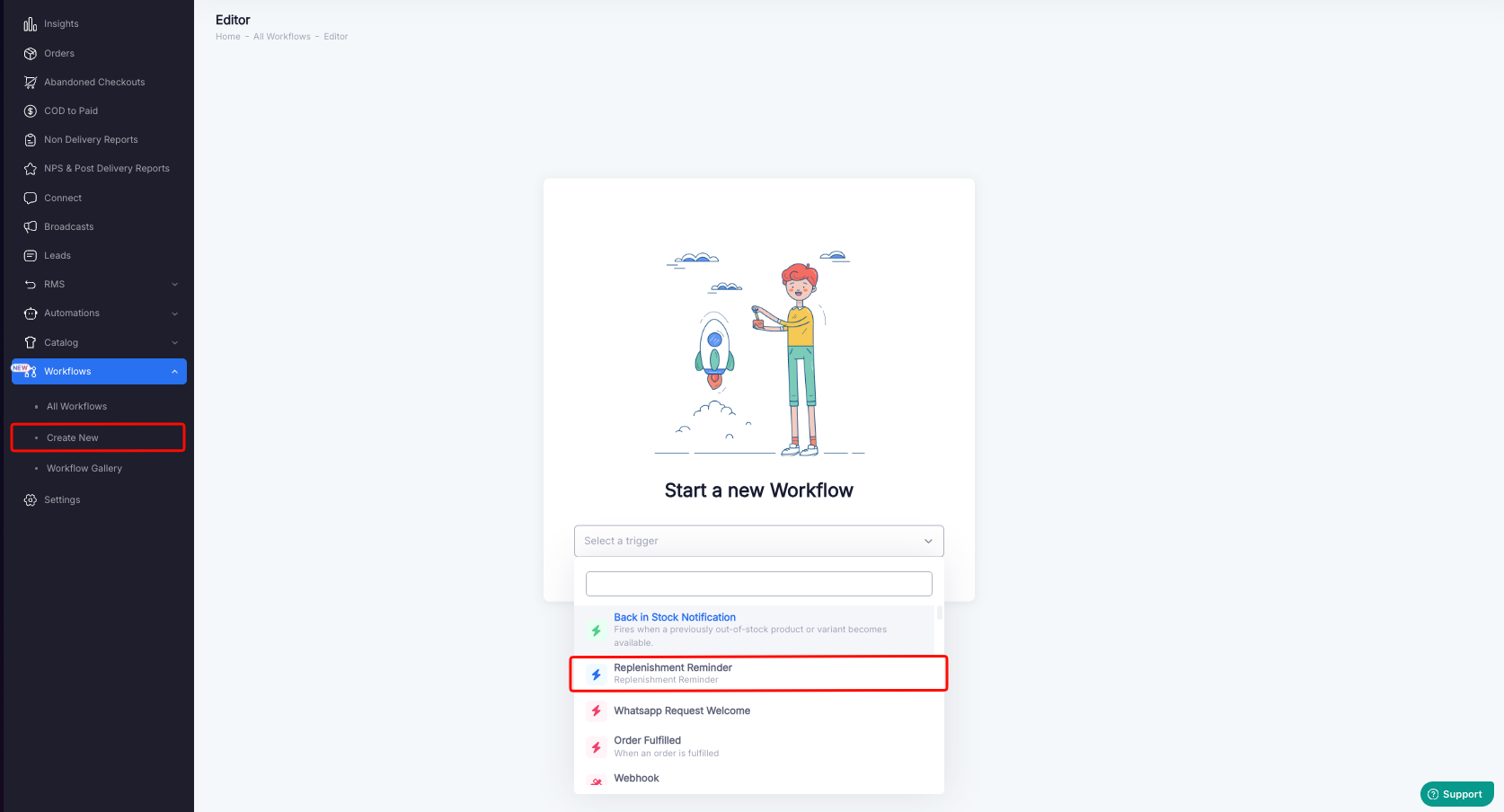
Step 3: Understand the Available Workflow Variables
When Pragma triggers the workflow, it sends useful details about the customer, order, product, and replenishment configuration.
Common variables include:
Customer name
Customer phone
Customer email
Product name
Product image
Product URL
Product price
Quantity purchased
Original order details
Delivered date
Due date
Use these variables in your message template so the reminder feels relevant.
Example message:
Hi {{customer_first_name}}, it may be time to restock {{product_name}}. You can order it again here: {{product_url}}
Step 4: Return to Replenishment Settings
After creating or updating the workflow, come back to the Product Replenishment Reminders settings page.
Click the small reload button near the workflow selector. This refreshes the list of workflows.
Only active workflows for the replenishment_reminder event will appear.
Reload workflow list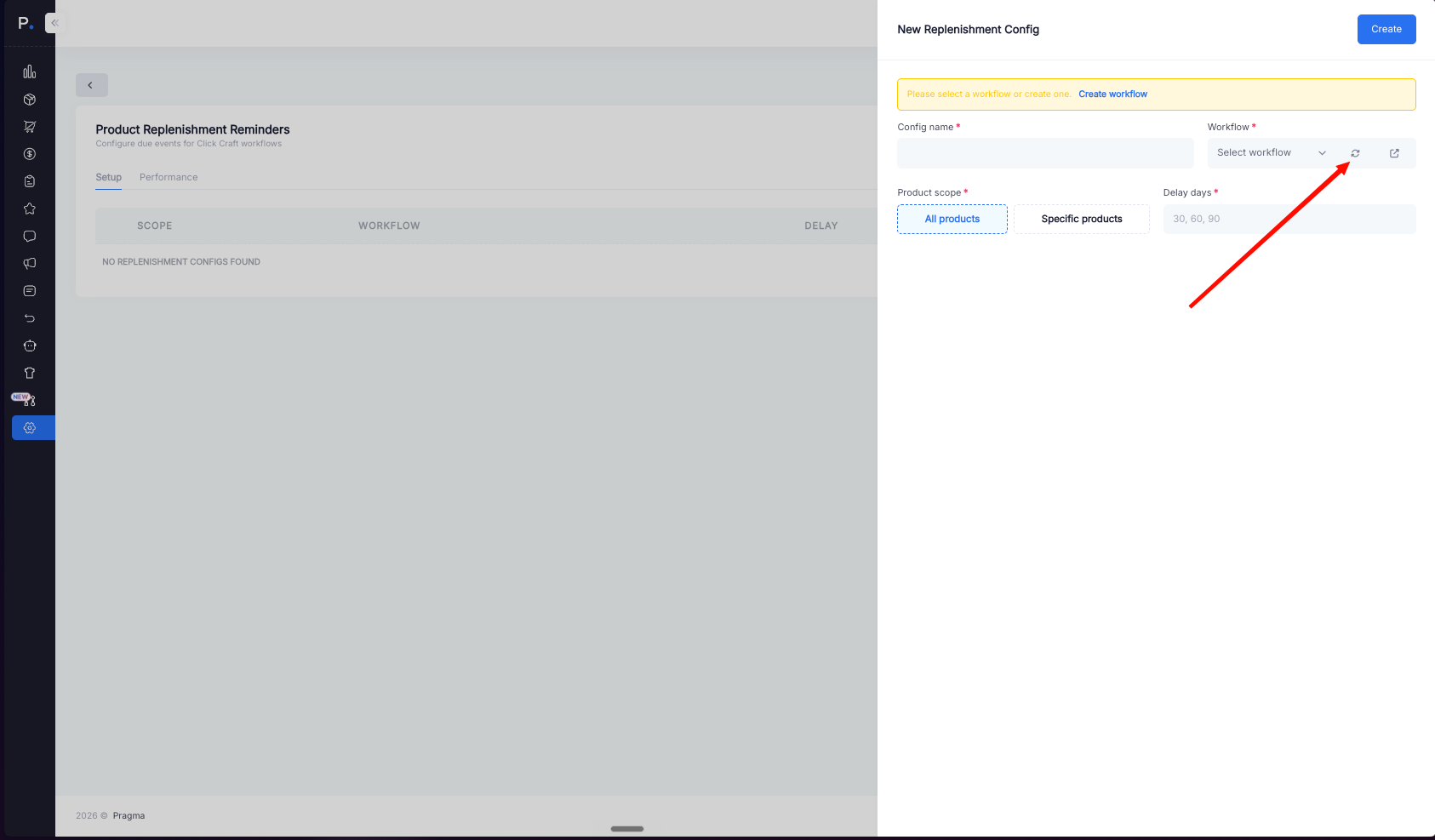
Step 5: Create a New Replenishment Configuration
Click New.
This opens the setup drawer.
Give the configuration a clear name. Use a name your team will understand later.
Examples:
Protein powder refill after 30 days
Skincare reorder reminder
Pet food monthly reminder
All products 45-day refill
Step 6: Choose Products
Choose whether this setup applies to:
Specific products
All products
For most brands, start with specific products. This gives you more control and avoids sending reminders for products that do not make sense for replenishment.
Use All products only if most of your catalog is replenishable.
If you select specific products, choose products from the product list. Once a product is added to a configuration, it should appear disabled in the picker so it is not accidentally configured again.
Step 7: Add Reminder Delay Days
Choose when the reminder should become due.
The delay is counted from the delivered date, not the order date.
Example:
Delivered date: May 1
Delay: 30 days
Reminder due date: May 31
You can add one or more delay days if needed.
Use delays that match the product usage cycle. For example:
15 days for fast-use consumables
30 days for monthly refills
45 or 60 days for slower-use products
Step 8: Select the Workflow
Select the workflow that should run when a reminder becomes due.
You cannot save the configuration without selecting a valid workflow.
The workflow must:
Be active
Use the
replenishment_reminderevent
This makes sure the reminder configuration is connected to an actual workflow that can send the message.
Step 9: Save the Configuration
Review the setup:
Configuration name
Product selection
Delay days
Workflow
Active status
Then click Save.
After saving, Pragma will start using the configuration for future eligible orders and deliveries.
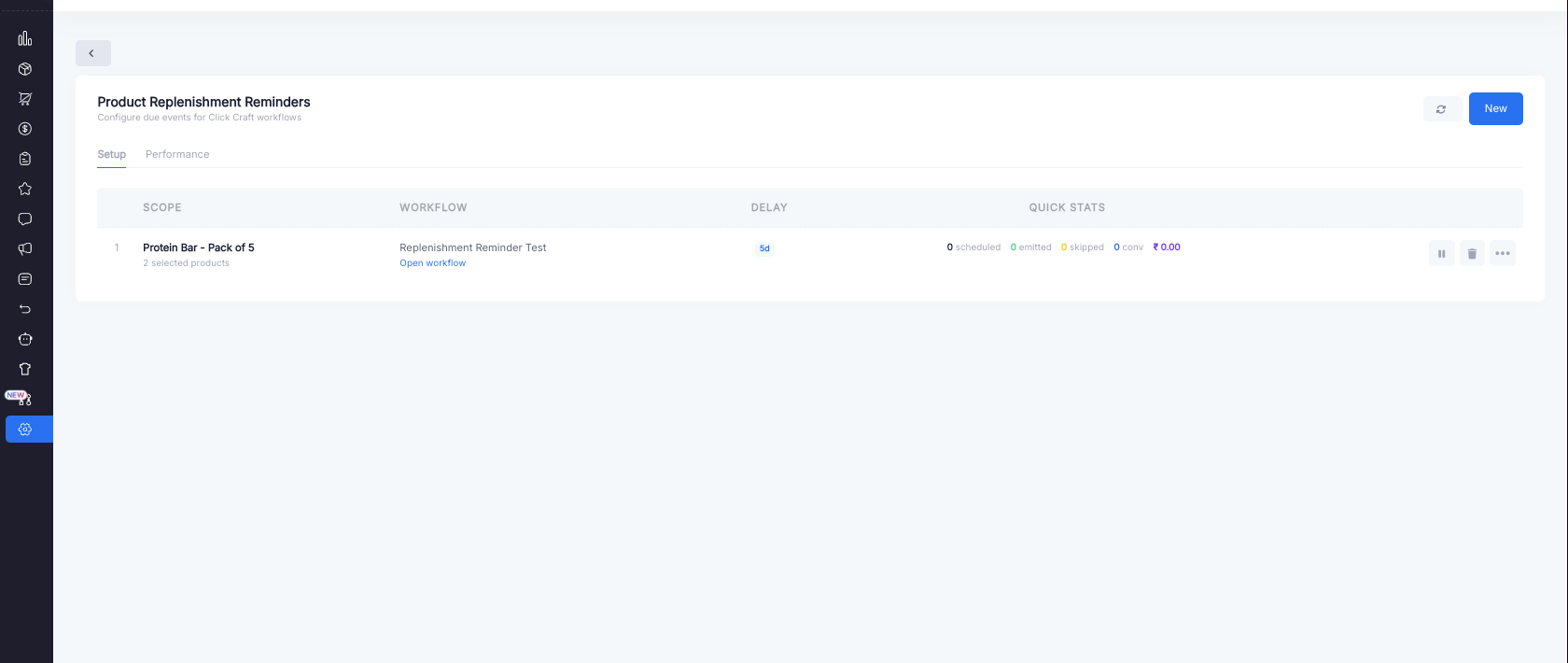
Step 10: Monitor the Setup
Open the Performance tab to understand how the replenishment setup is behaving.
You can review:
Scheduled executions
Sent executions
Skipped executions
Failed executions
Conversions
Revenue
Delivery data
Clicks and engagement
Some metrics come from Pragma, such as whether a replenishment execution was scheduled or skipped. Message and conversion metrics come from Workflows reporting.
Common Skip Reasons
Sometimes a reminder is not sent. This is expected when sending would not make sense.
Common skip reasons include:
Customer has no phone or email
Product no longer exists
Product is unavailable
Product URL is missing
Customer already bought the same product again
Another product was already chosen for the customer on the same day
Linked workflow is inactive or not found
These skips help avoid poor customer experiences and broken messages.
Example Setup
Here is a simple example for a supplement brand.
Configuration name:
Protein refill reminder
Products:
Whey Protein 1kg
Delay:
30 days
Workflow:
Replenishment Reminder - WhatsApp
Behavior:
If a customer receives Whey Protein on May 1, Pragma schedules a replenishment reminder for May 31. On May 31, Pragma checks whether the customer already bought the same product again. If not, it sends the replenishment event to Workflows. Workflows then runs the selected workflow and sends the message.
Best Practices
Start with a small set of products. Choose products that customers naturally buy again.
Use clear configuration names. This helps your team understand what each setup does.
Match delay days to real customer usage. If the reminder is too early, it may feel irrelevant. If it is too late, the customer may already have bought elsewhere.
Keep the workflow active. If the linked workflow is turned off, reminders may be skipped.
Review performance regularly. Use the Performance tab to see whether reminders are being sent and whether they are generating revenue.
Troubleshooting
I Cannot Save the Configuration
Check that:
At least one product is selected when using specific products.
At least one delay day is added.
A workflow is selected.
The selected workflow is active.
The selected workflow uses the
replenishment_reminderevent.
I Do Not See Any Workflows
Click the reload button next to the workflow selector.
If the list is still empty, create or activate a workflow that uses the replenishment_reminder event.
A Reminder Was Skipped
Open the execution details and check the skip reason.
Most skips are intentional. For example, Pragma skips reminders when the product is unavailable, the product URL is missing, or the customer already bought the same product again.
Performance Numbers Look Empty
Performance data depends on Workflows reporting. Make sure the workflow has actually sent messages and has had enough time to collect delivery, click, conversion, and revenue data.
Summary
Product Replenishment Reminders help you bring customers back when they are likely to need the same product again.
Pragma decides when a product is due for replenishment. Workflows decides how the message is sent and tracks performance.
The safest setup is:
Create an active
replenishment_reminderworkflow in the Workflows section.Select a small set of replenishable products.
Choose realistic delay days.
Link the workflow.
Save the configuration.
Monitor performance and skipped executions.
Was this article helpful?
That’s Great!
Thank you for your feedback
Sorry! We couldn't be helpful
Thank you for your feedback
Feedback sent
We appreciate your effort and will try to fix the article